

With PC games growing increasingly complex nowadays — especially ones built on Epic Games‘s infamous Unreal Engine 5 — default/maxed-out graphics settings rarely (if at all) strike the optimal balance between visual fidelity and performance that most PC gamers seek, and early access sensation Windrose is no exception to this rule. As a demanding UE5 game, it should come as no surprise to many that the game’s maxed-out Epic graphics settings will be very GPU-heavy and thus should require some tweaking to achieve better performance on most rigs, without completely sacrificing visual fidelity.
This guide should hopefully help you strike an optimal balance between performance and visuals in this game. In it, we will first provide you with a brief technical overview of the game, then break down how each relevant graphics setting affects performance and visuals through video comparisons. Finally, we will present you with our ready-to-use optimized graphics settings, in addition to some tips that should help improve your experience with the game.
A Brief Technical Overview Of Windrose
Released on April 14, 2026, on PC (via Steam Early Access), Windrose is an open-world pirate survival adventure game developed by Kraken Express and published in partnership with Pocketpair Publishing. Built on Unreal Engine 5, the game blends classic survival mechanics with large-scale naval exploration, placing players in the role of a stranded pirate who must rebuild their ship, gather resources, and rise through the ranks to command a formidable crew across land and sea.
Emphasizing crafting, base-building, and cooperative gameplay, Windrose challenges players to establish outposts, engage in ship-to-ship combat, and explore a dynamic world filled with hostile wildlife, rival factions, and hidden treasures. As players progress from a lone castaway to a seasoned captain, they unlock increasingly powerful ships, upgrade their equipment, and expand their influence in an unforgiving pirate-infused sandbox that should continue to evolve throughout its Early Access lifecycle.
Let’s begin by taking a look at the game’s PC system requirements, courtesy of its developers:
| Tier | CPU | GPU | RAM | Storage | Additional notes |
|---|---|---|---|---|---|
| Minimum | Intel Core i7-8700K / AMD Ryzen 7 2700X | NVIDIA GTX 1080 Ti / AMD Radeon RX 6800 | 16 GB | 30 GB | Requires 64-bit OS (Windows 10), DirectX 12, SSD strongly recommended; more RAM needed if hosting a server |
| Recommended | Intel Core i7-10700 / AMD Ryzen 7 5800X | NVIDIA RTX 3080 / AMD Radeon RX 6800 XT | 32 GB | 30 GB | Requires 64-bit OS (Windows 11+), DirectX 12; SSD strongly recommended; requirements not final (Early Access) |
As we can see from the above table, Windrose doesn’t look particularly demanding at first glance, but the additional notes and context tell a different story. The game is still in Early Access, with developers explicitly stating that the requirements are not final, which often indicates ongoing performance issues and future optimization work. Overall, this suggests that Windrose behaves more like a resource-heavy sandbox simulation than a typical survival game, with CPU, RAM, and storage speed all playing a major role in performance.
Thankfully, the game does have a Pipeline State Object (PSO)/shader compilation step, which, in our experience with the game, was quite effective as we failed to spot any egregious instances of just-in-time shader compilation stutter. Unfortunately, the game does seem to occasionally exhibit the usual UE5 traversal stutters, in addition to other intermittent stutters that didn’t seem to be related to either shader compilation or world traversal. Hopefully, the developers can look into and address this issue in a future update.
A Deep Dive Into Windrose‘s Graphics Settings
In this section, we will explore the various graphics settings in Windrose via comparison videos that should showcase both the visual and performance (in terms of framerate) profiles of each setting, thus allowing us to determine which combination of settings strikes the best visuals-to-performance ratio, which is the basis for establishing optimized graphics settings in all PC games.
Also, please be aware of the fact that the graphics settings comparisons in this section have all been made on a system with the following specs:
- CPU: Intel Core i7-14700K;
- RAM: 32 GB DDR5-7000 CL34;
- Storage: 2 TB PCIe 4.0 NVMe SSD;
- GPU: NVIDIA GeForce RTX 4090;
- Operating System: Windows 11 25H2;
- All system firmware, drivers, BIOS, and OS updates were fully applied before testing.
Also, all of the comparisons were done under GPU-limited scenarios at a resolution of 2560×1440 (1440p) with Unreal Engine 5‘s Temporal Super Resolution (TSR) as the temporal upscaling/antialiasing solution at the native resolution (100% render scale), as in this game — like most other UE5 games — the GPU will largely be the performance limiting factor rather than the CPU (or other system components), unless you were aiming to achieve some really high framerates. Furthermore, please keep in mind that lowering GPU-intensive graphics settings (which are basically all of the game’s settings) will not affect the game’s performance if the rest of your system (mainly the CPU and system memory) is too slow to keep up with your GPU.
With all that said, let’s first take a look at the game’s graphics settings menu:
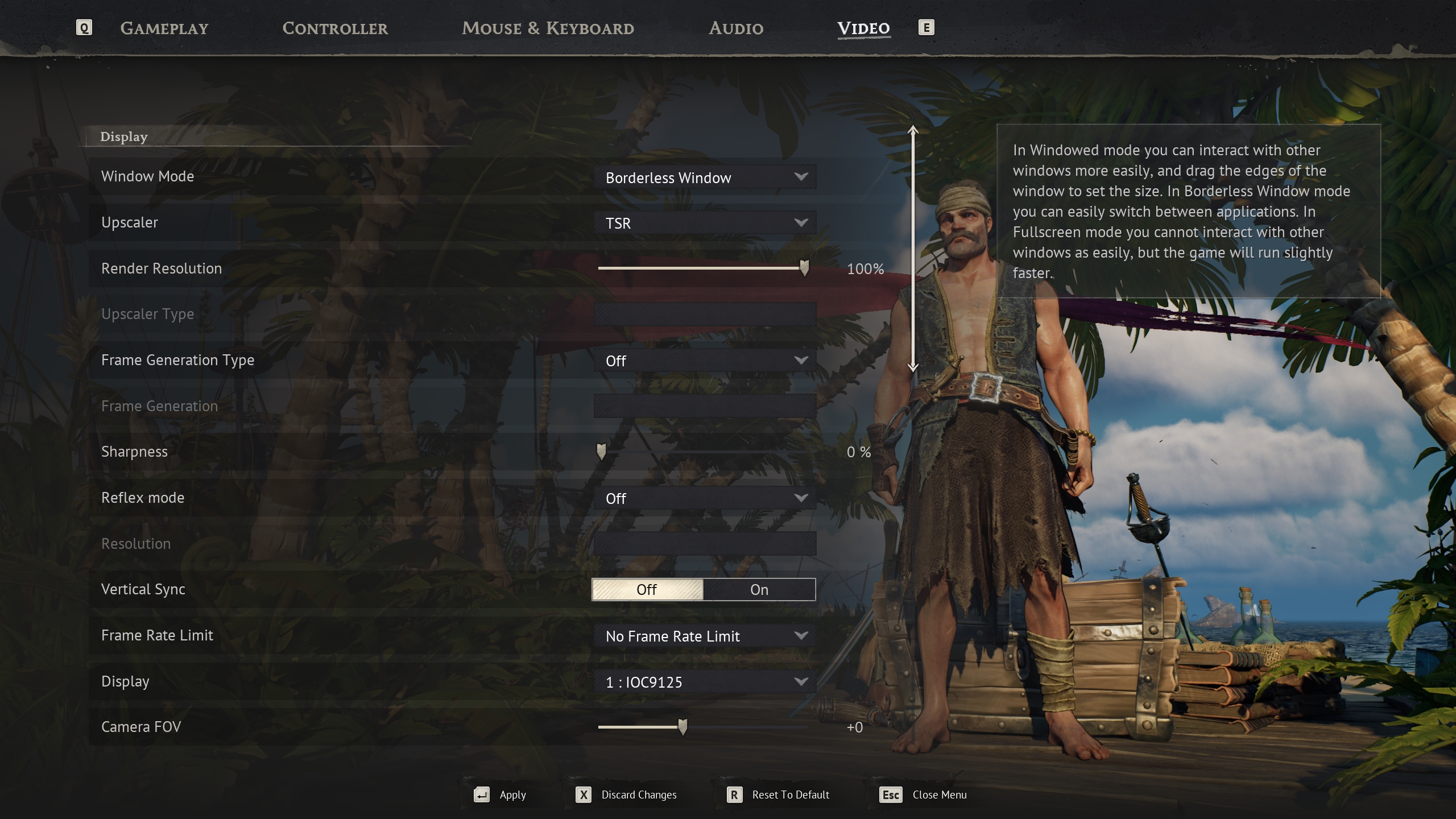
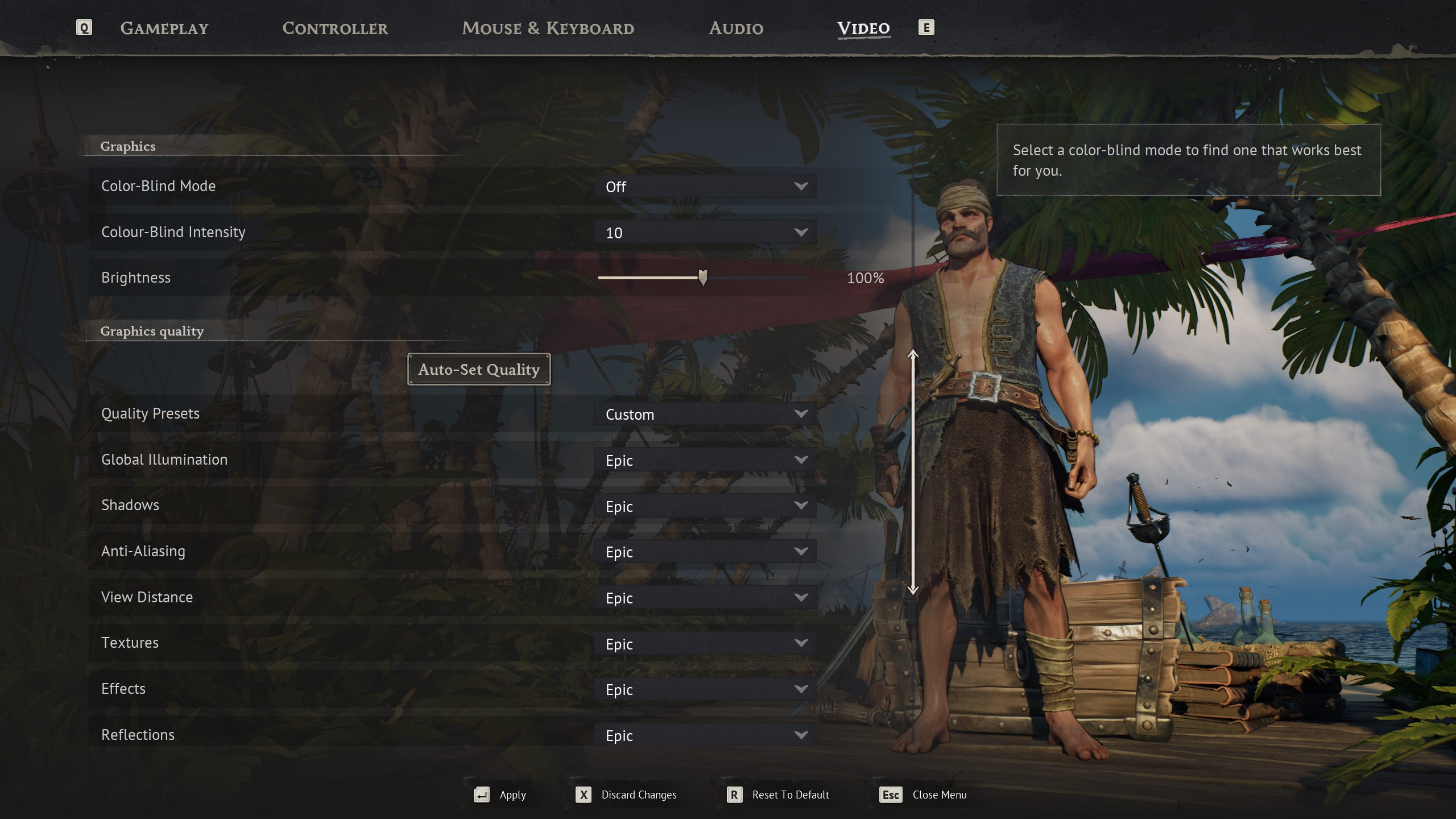
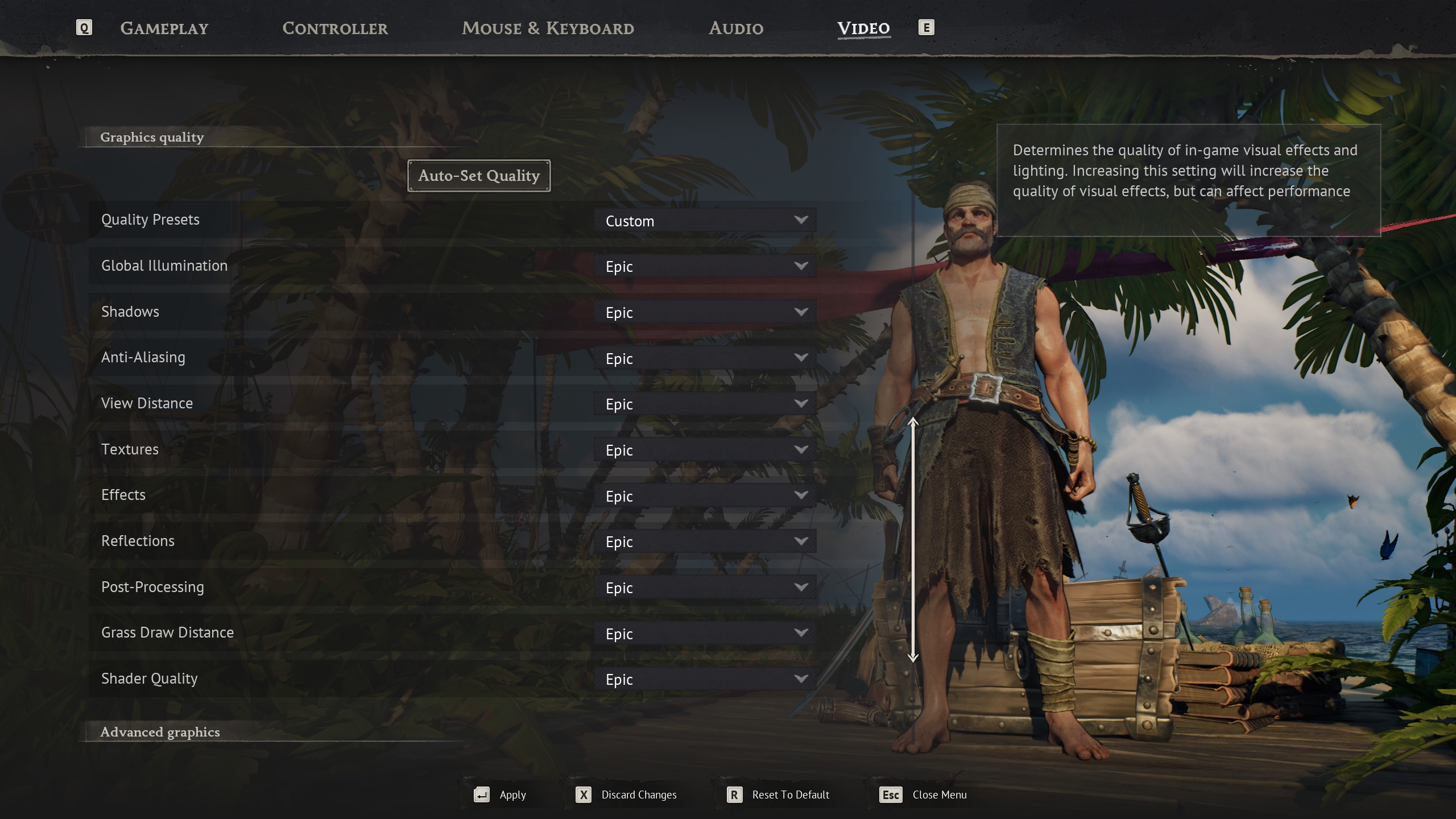
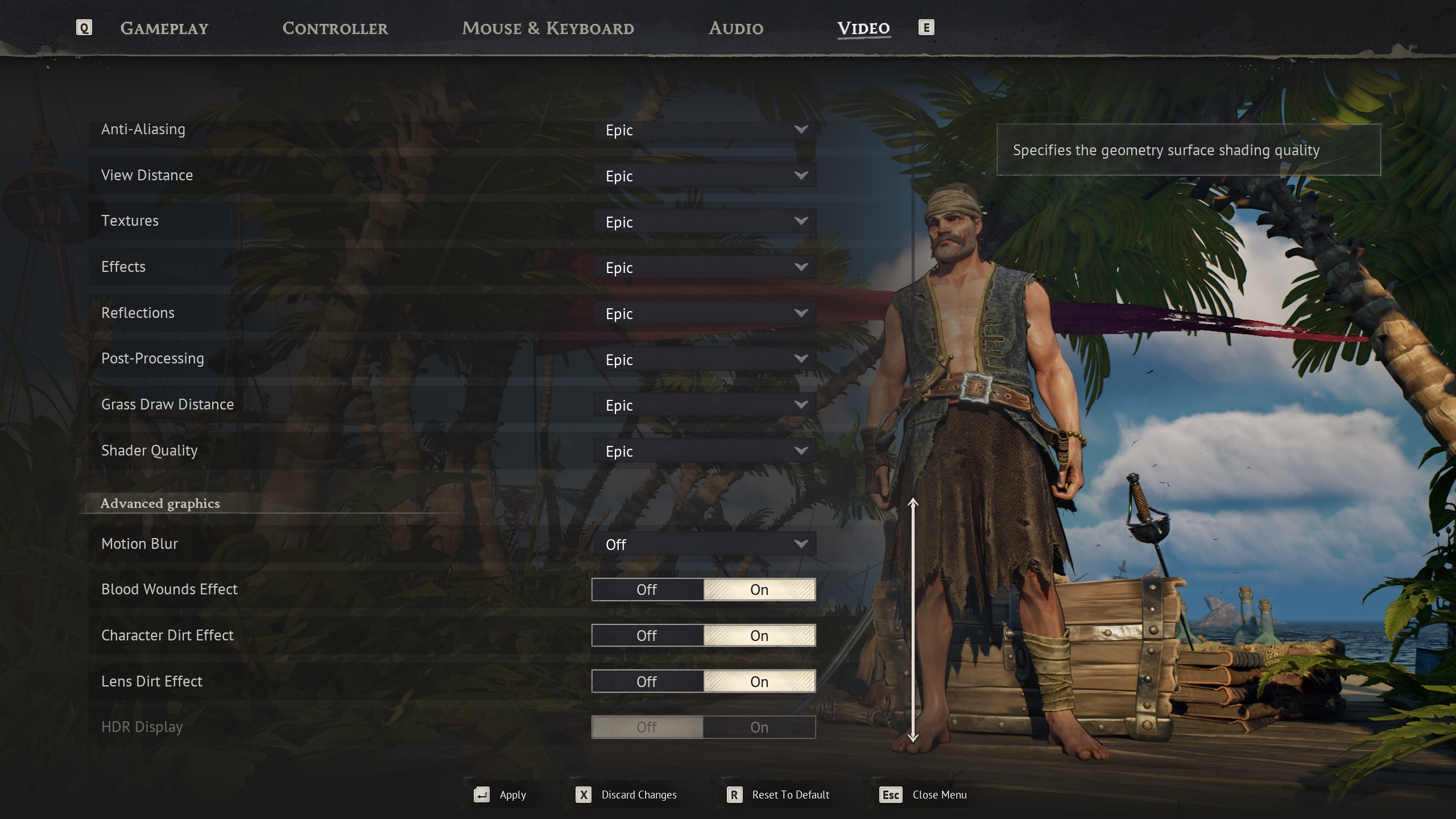
As we can see from the above pictures, the game’s graphics settings menu seems to have the list of usual UE5 graphics settings, with nothing unusual of the sort to mention, with perhaps the only notable absence being the lack of Intel XeSS upscaling and frame generation support, as the game only supports NVIDIA DLSS and AMD FSR, in addition to UE5‘s TSR, of course.
With that said, let us finally delve into the visual and performance profiles of each relevant graphics setting that the game offers.
Note: The comparison videos have an MSI Afterburner/RivaTuner Statistics Server (RTSS) based overlay that displays game performance data regarding three metrics that we feel are relevant to gauge the performance profile of each graphics setting, which are GPU usage, real-time framerate (FPS), and dedicated GPU memory (VRAM) usage.
Global Illumination
Global Illumination controls the fidelity of the game’s Lumen/Signed Distance Fields (SDF)-based diffuse indirect lighting. We believe that Medium provides the best balance of visuals and performance, so we recommend it here.
Shadows
This setting controls the resolution of the game’s Virtual Shadows Maps. We recommend Medium as a solid, balanced option between visuals and performance.
Anti-Aliasing
This setting controls the fidelity of UE5‘s TSR temporal upscaling/antialiasing solution. We recommend setting it to Medium for a decent performance boost without a noticeable hit to TSR‘s quality. Do note, however, that this setting is only relevant if you’re using TSR as your temporal anti-aliasing/upscaling solution.
Note: Unfortunately, we’ve mistakenly labeled the lowest Anti-Aliasing setting as Low in the above comparison video, whereas it should’ve been labeled Off, which completely disables TSR and is not recommended despite the increased performance, due to the loss of temporal stability. We sincerely apologize for this mistake!
View Distance
View Distance controls the level of detail (LoD) of non-Nanite meshes. This setting didn’t seem to impact performance and visuals a lot in our testing. Still, we recommend setting it to High, just in case it has a harsher-than-expected performance impact in a later game area.
Textures
This setting should control the resolution of the game’s textures. However, it did not result in any noticeable changes in either texture fidelity or dedicated GPU VRAM usage in our experience with the game, so there is a chance that it is currently dysfunctional. As such, we have no particular recommendation for this setting.
Effects
This setting controls the fidelity of the game’s various effects, such as alpha transparencies (like fire and smoke) and GPU-accelerated particles. We recommend High here as a nice balance between visual fidelity and performance.
Reflections
The Reflections setting controls the resolution of the game’s Lumen-based specular indirect lighting, which is also commonly known as reflections. We recommend Medium as a good performance-aware option here.
Post-Processing
The Post Processing setting in UE5 games usually tends to control the enablement of various effects such as depth of field, vignette, chromatic aberration, motion blur, and so on. We recommend Low here as it provides a decent performance bonus without a noticeable hit to visuals.
Grass Draw Distance
This setting controls the amount of grass that is rendered by the game, depending on the distance from the player-character. We recommend Medium here as a good compromise between grass density and performance.
Shader Quality
This setting controls the “geometry surface shading quality” according to the game’s graphics menu description. We recommend High here as it provides the best visuals-to-performance ratio out of all setting levels.
Optimized Graphics Settings & Tips On How To Get The Best Experience in Windrose On PC
Optimized Graphics Settings
Wrapping it all up, here are the final, recommended optimized graphics settings for Windrose, which we feel strike an optimal balance in terms of both performance and visuals for this game:
| Graphics Setting | Optimized Value |
| Global Illumination | Medium |
| Shadows | Medium |
| Anti-Aliasing | Medium |
| View Distance | High |
| Textures | No particular recommendation |
| Effects | High |
| Reflections | Medium |
| Post–Processing | Low |
| Grass Draw Distance | Medium |
| Shader Quality | High |
With our optimized graphics settings established, let us look at how they improve performance — at a minor cost in terms of visual fidelity — on our test system vs the game’s maxed-out/Epic graphics settings, via the following CapFrameX benchmarks:
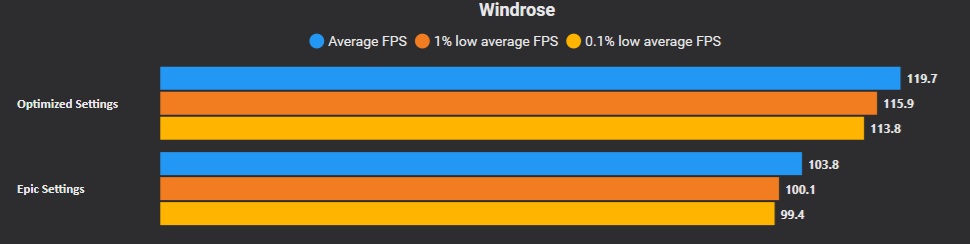
As we can see from the comparison screenshots above, our optimized graphics settings deliver roughly a 15% uplift across average FPS, 1% lows, and 0.1% lows in our test scene, representing a respectable gain, albeit one that falls short of truly standout improvements.
In addition to our optimized graphics settings, you can further enhance your experience with Windrose with the additional tips below.
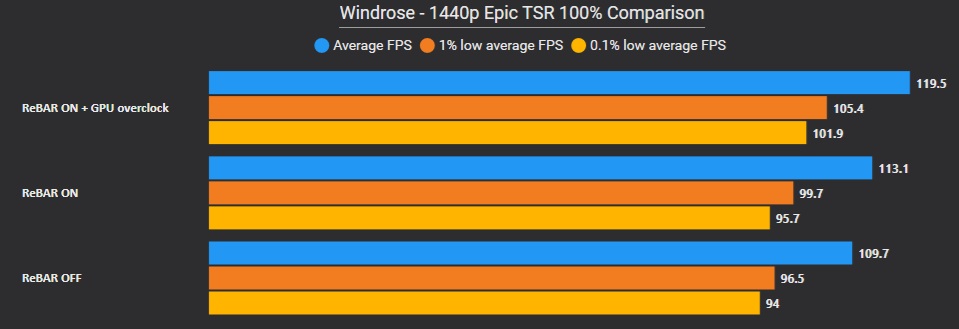
First, enabling Resizable BAR for the game’s profile via NVIDIA Profile Inspector on NVIDIA GeForce RTX GPUs (30 Series or higher) may result in a half-decent gain in GPU-limited performance, which can be combined not only with our optimized graphics settings, but also temporal upscaling — and perhaps also frame generation/multi frame generation for increased visual smoothness — not to mention a GPU overclock, to considerably improve your GPU-limited performance in Windrose, as the following CapFrameX benchmarks can attest to:
Second and last, users of non-NVIDIA GeForce RTX 50 Series GPUs that can achieve a decent baseline level of performance in Windrose and have high-refresh rate monitors (at least 180 Hz is recommended) may want to explore using the popular DLSS Enabler mod to enable a modded version of AMD‘s open-source FSR 3.1 Frame Generation frame interpolation technology, which can generate up to 5 interpolated frames between “real” rendered frames, not unlike NVIDIA‘s own DLSS Multi Frame Generation technology.
Final Words
Overall, Windrose lands right where you’d expect most modern Unreal Engine 5 titles to sit from a technical standpoint. Performance is generally acceptable, and the game avoids the dreaded shader compilation stutters that have plagued many UE5 releases in the past. However, this is sadly offset by occasional stutters that are related to world traversal (in addition to other unexplained stutters) that can briefly disrupt immersion. Visually, while the game delivers strong environmental design and atmosphere, it doesn’t quite push the envelope.
In the end, Windrose is a relatively polished — yet still evolving — technical package. For an Early Access UE5 title, it delivers decent performance and a solid baseline experience, but it’s not without its rough edges, with occasional stuttering, high hardware demands, and some optimization inconsistencies holding it back from true technical excellence.

About the author: Sebastian Castellanos is a data scientist by education and training. He’s also deeply passionate about PC gaming hardware and software. He has recently started writing technical articles and guides Wccftech about PC hardware, games and mods.
Follow Wccftech on Google to get more of our news coverage in your feeds.
VIA: wccftech.com